Product Help
How to use and manage prompts in Elsie
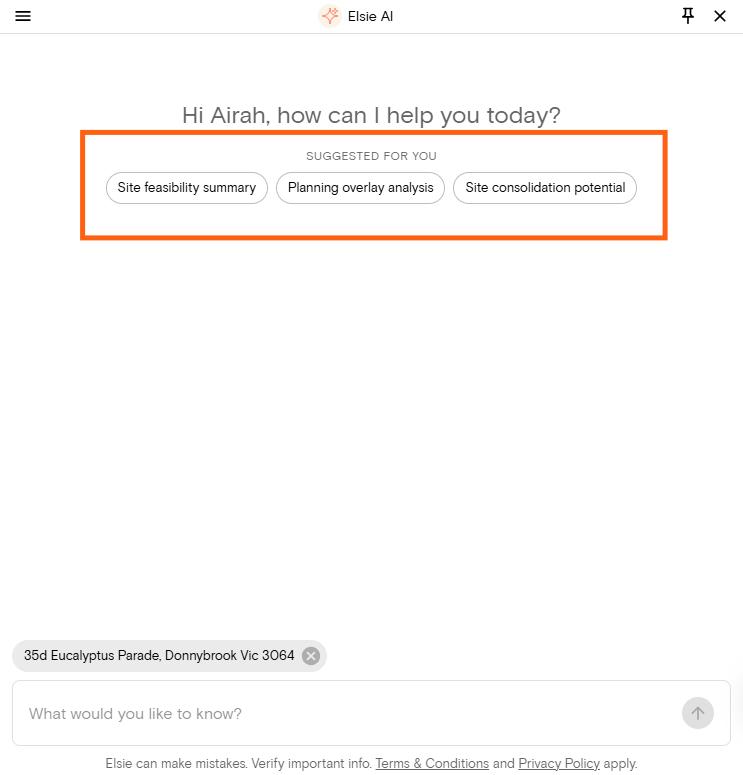
When you open Elsie, you’ll see a set of suggested prompts tailored to your role. For example, architects and town planners might see options like “Site constraints overview”, “Planning zone design rules”, or “Neighbourhood character analysis”.
Developers might see prompts focused on development potential and permit history. Valuers might see prompts related to overlays and comparable data.
To use a suggested prompt:
1. Select a property on the map.
2. Select one of the suggested prompts displayed in the Elsie panel.
3. The full prompt text will automatically populate in the text box. For example, selecting “Site constraints overview” will insert a detailed prompt asking Elsie to summarise setbacks, height limits, overlays, and easements for that property.
4. Review or edit the prompt if needed, then press Enter or select the send button to start.
You can also type your own question in the text box at any time. Elsie draws on live Landchecker data, so its responses reflect current planning information for the property you’ve selected.
Tips for creating effective prompts
A prompt is the question or instruction you type into Elsie. You don’t need to use specific commands or search syntax; just ask in plain English, the same way you would ask a colleague. A few tips for getting the most from your prompts:
1. Select a property first. Elsie works best when a property is selected on the map before you start chatting.
2. Be specific. Mentioning the constraint, zone, or document type you’re interested in helps Elsie give a more focused answer.
3. Ask follow-up questions. Elsie understands context within a conversation, so you can build on a previous question without repeating yourself.
Here are some examples of less effective versus more effective prompts:
| Less effective | More effective |
|---|---|
| “What’s on this property?” | “What planning overlays apply to this property, and how do they affect what I can build?” |
| “Documents?” | “What documents do I need to check easements on this property?” |
| “Is this good for development?” | “What is the zoning and are there any overlays that would restrict a two-storey townhouse on this site?” |
How to manage your prompts
Elsie includes a Manage prompts option in the panel. This is where you can save, organise, and reuse prompts you find helpful, particularly useful if you regularly ask similar questions across different properties.
1. Click Manage prompts in the right-hand side panel.
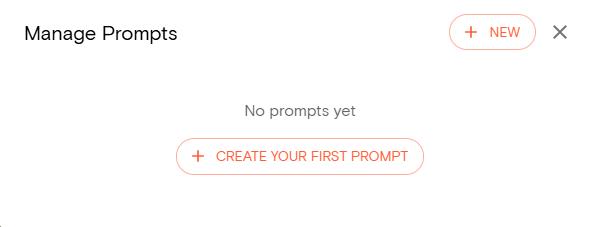
2. A pop-up box opens. If it's your first time saving a prompt, you can click the +Create Your First Prompt. If you have prompts added already, click the +NEW button in the top right corner.
3. Add a title and the content for your prompt
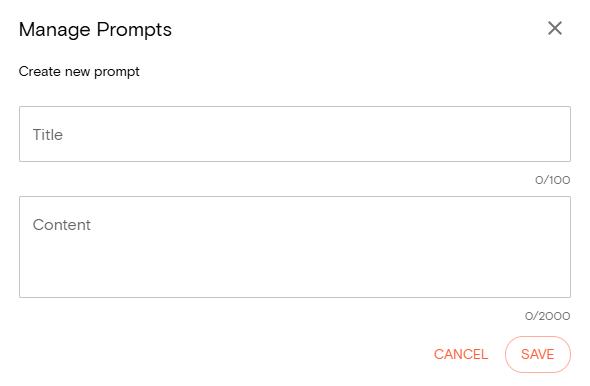
4. Click Save to save your changes or cancel to start a new prompt.
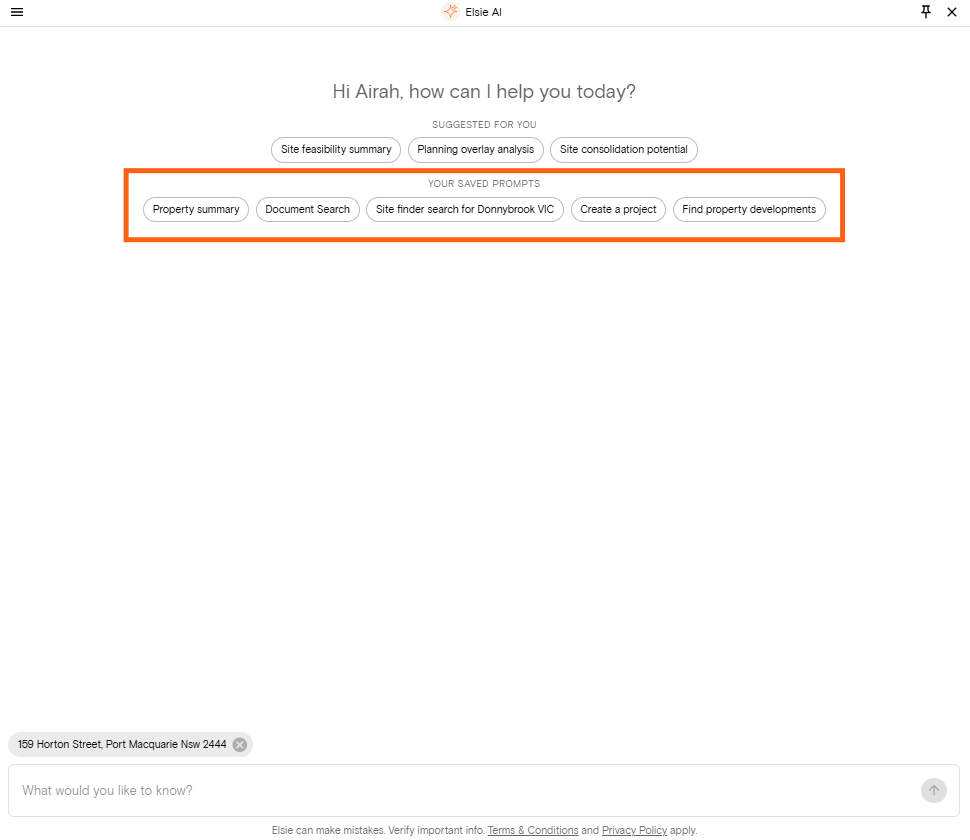
Your saved prompts will appear under the suggested prompts.