Site Finder
Discover sites with untapped development potential or similar properties for comparison to your subject property using the powerful Site Finder tool.
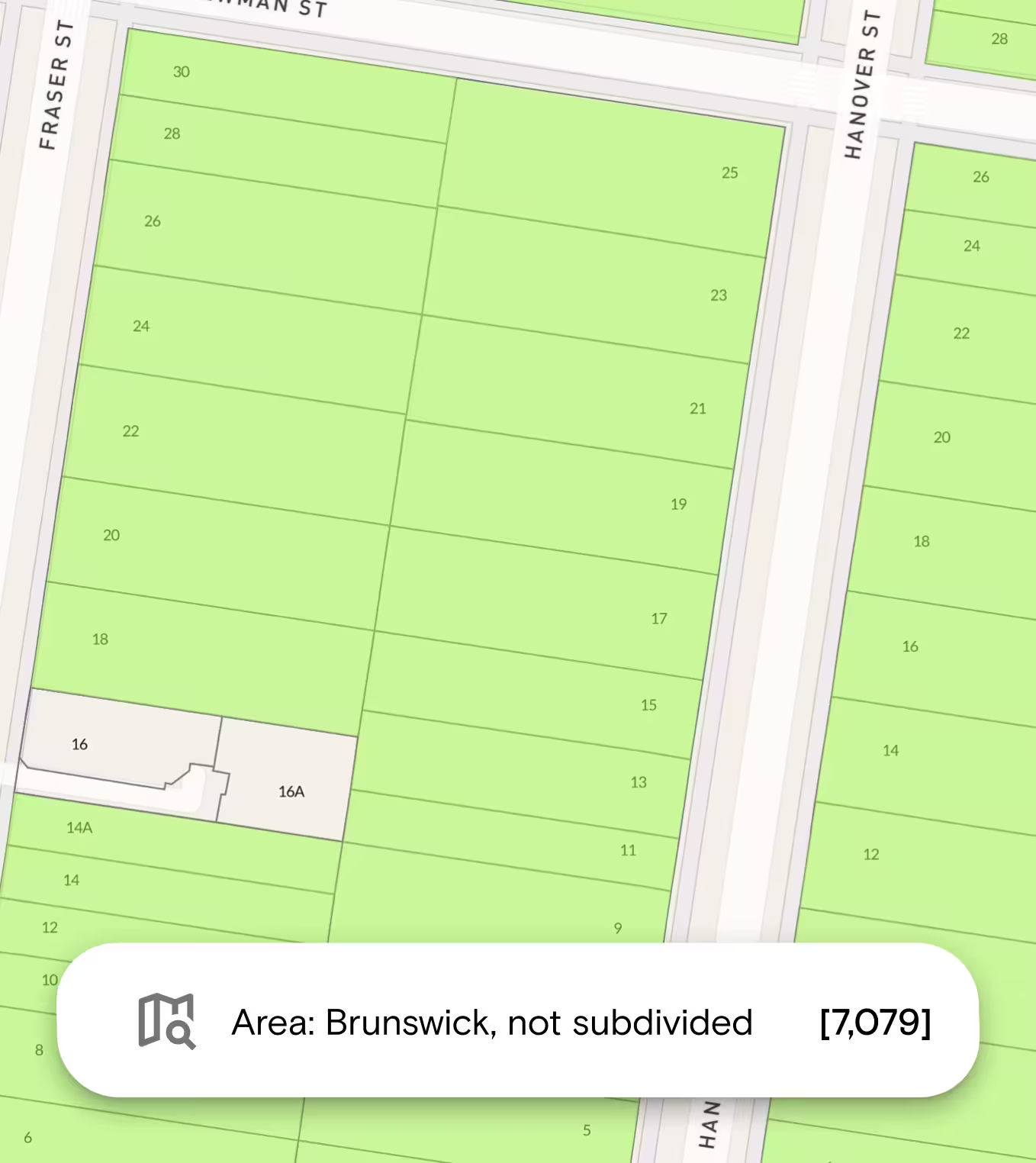
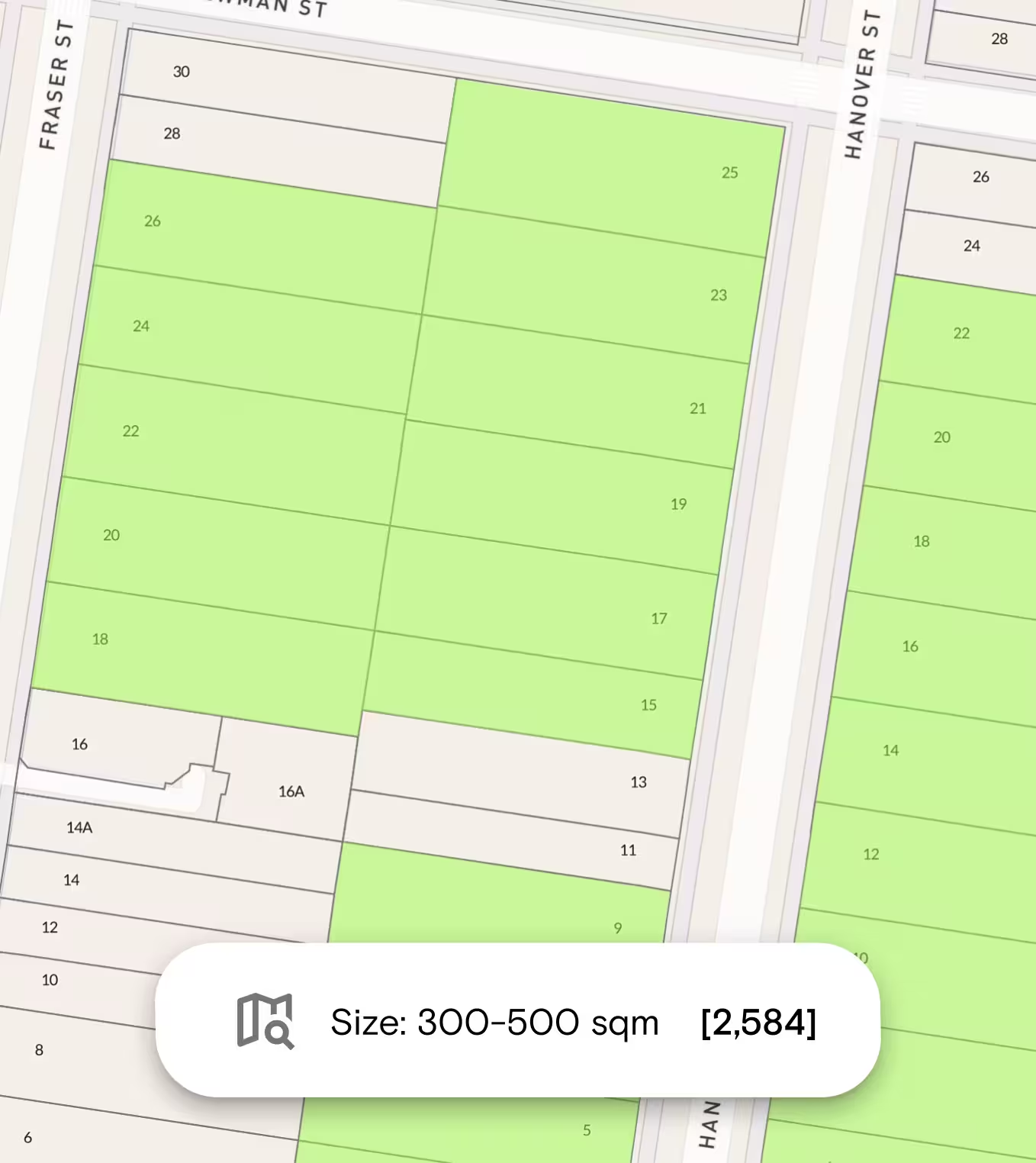
Identify the number of sites in a state, suburb, municipality or SA1. Search many areas in a single search. Use search filters, such as land size, zones, overlays and more, to narrow down an entire state to a handful of suitable sites in seconds. Alternatively, exclude property attributes that you don’t want to see.
“To help us stay ahead of the competition, we use Landchecker - it delivers us the information we need at our fingertips. The decisions Abadeen makes today are crucial to the projects we plan on delivering tomorrow, and Landchecker aids that decision-making.”
Aaron Arias, Head of Acquisitions
Abadeen
Use Site Finder to Search the Following Criteria
Site Finder makes the complex task of finding a specific site simple and easy with the use of property data and filters to limit the pool size to sites that matter most to you.
Location
- Suburbs
- Municipalities (Advanced and Enterprise only)
- Statistical Area 1 (SA1) (Advanced and Enterprise only)
Size & Dimensions
- Land size
- Frontage (m)
- Depth (m) (Advanced and Enterprise only)
Planning
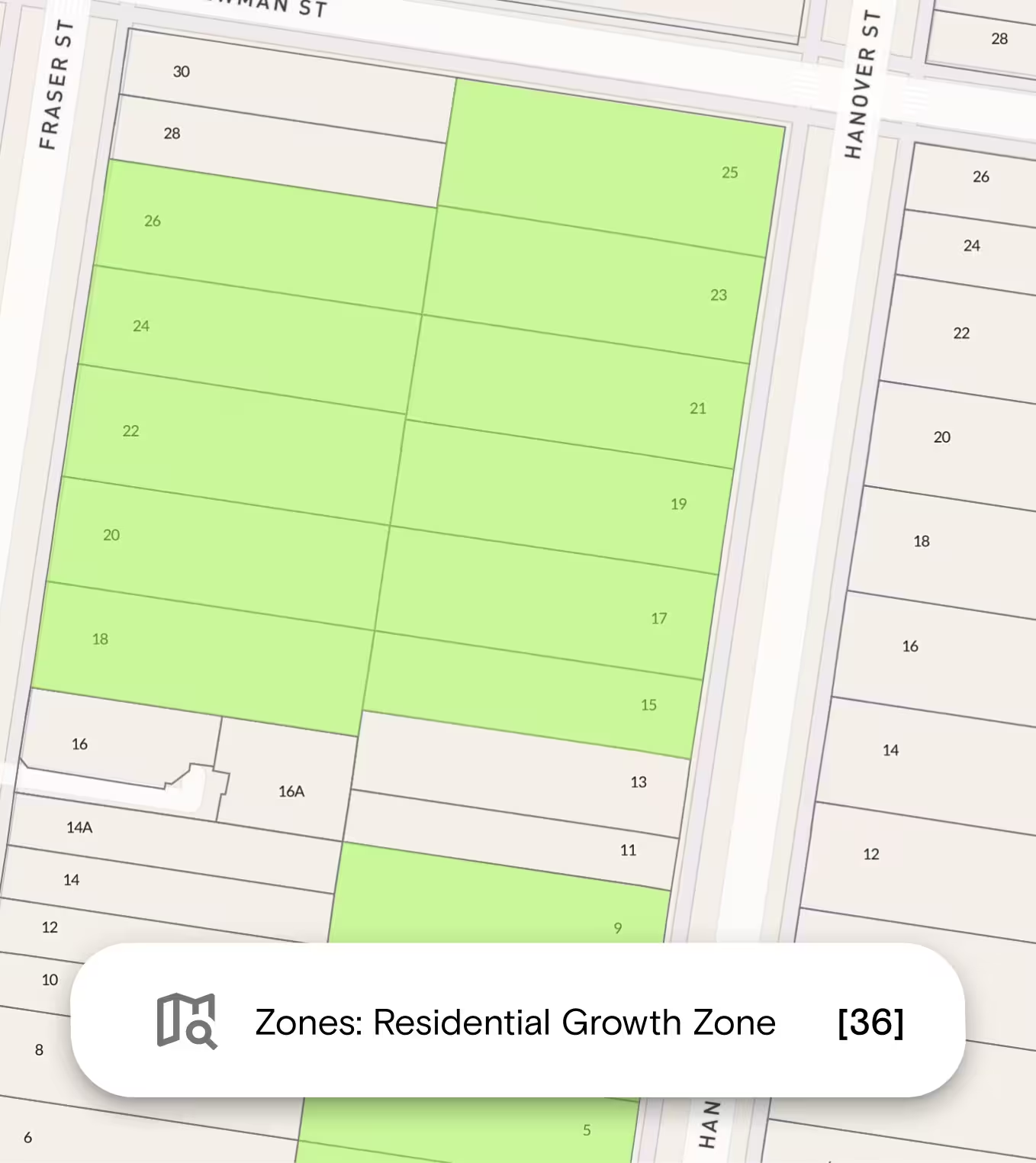
- Planning zone - Select one or more planning zones from the drop-down menu. View the highlighted properties on your map.
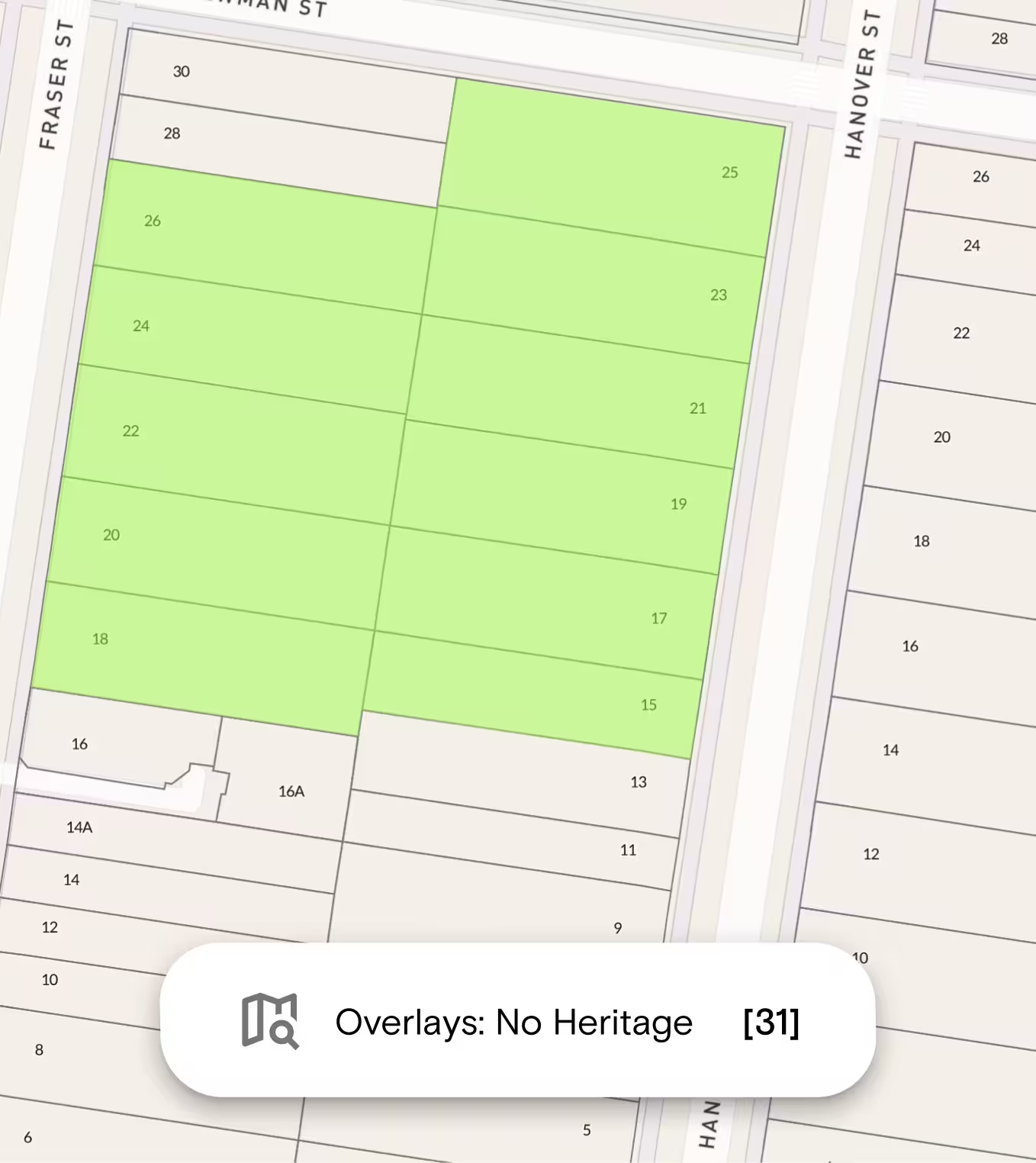
- Planning overlays - Select one or more Planning Overlays filters to show properties with or without your selected planning overlays. View the highlighted properties on the map.
Shape & Geometry
Filter properties by their shape characteristics:
- Lot Shape — Select one or more lot shapes: Rectangle, Square, Battleaxe, Irregular, Triangular, or Trapezoid. You can select all shapes or just the ones that suit your search. (Advanced and Enterprise only)
- Squareness Factor — Filter by how regular or irregular a lot shape is. You can either move the slider to your desired value (0.1 to 0.9) or use the quick select options below the slider to jump to a common value. Leave the slider set to Any to include all squareness factors. (Advanced and Enterprise only)
- Orientation - Filter by the direction the property faces: North, East, South, or West. You can select one, a few, or all orientations. (Advanced and Enterprise only)
Topography
Filter properties by land slope. You can select one or more slope types:
- Flat — 0–2° (0–3.5%)
- Gentle — 2–5° (3.5–9%)
- Moderate — 5–10° (9–18%)
- Steep — 10–20° (18–36%)
- Very Steep — 20°+ (36%+)
Development Controls (NSW only)
- Floor Space Ratio — Enter your preferred floor space ratio.
- Height Limit (m) — Enter the minimum and maximum building height in metres.
- Minimum Lot Size — Enter the minimum lot size. Units available: m², acres, or hectares.
Save, Export and Collaborate
Once you have a shortlist, you have several options:
- Save to a Project — add notes, upload documents (titles, planning certificates, copy of plans), and share with team members for collaborative review
- My Searches — View your saved searches at any time under the My Searches tab.
To export your results: Click Export and choose your preferred format:
- CSV or XLS - import results into Excel or your own system
- KML (Points) open points in Google Earth, QGIS, or compatible GIS tools
- KML (Polygons) open shapes in Google Earth, QGIS, or compatible GIS tools
How to Use Site Finder
Follow the steps below to quickly identify suitable properties based on your specific criteria using the property site finder tool.
1. Log in to your Landchecker account
2. Click the Site Finder icon in the layers menu on the left-hand side.
3. Select your state in the drop-down menu to start filtering your search. Make sure that the selected state matches the state visible on the map.
4. Toggle on the layers you want to apply. You can apply more than one filter at a time.
NOTE: Standard plan members can filter by Suburb, while Advanced plan customers can filter by Suburb and Municipality.
5. Click Reset if you want to make changes to your filters.
6. Click Save To store your site finder results. You can save to a Project or to the My Searches tab.
7. Click the three-dot menu to export your search results as CSV, XLS, KML (Points), KML (Polygons).
For more details, you can read our help articles with quick video demos for easy reference.
Trusted by thousands of businesses every day
"Having access to all this property information in one place is invaluable, from sales data, to planning information and permits. The Landchecker map is very easy to use."
"Clients expect the advice to come immediately so they can make informed decisions on whatever it is they're doing, whether it is an acquisition or development applications or VCAT, Landchecker is that one-stop-shop; a tool that we could use to provide advice we could then give to our clients in a timely fashion."
“Landchecker is the most used and popular online tool for KordaMentha’s real estate team. Its intuitive platform simplifies complex property research, enabling our team to quickly retrieve essential information such as land size, zones and overlays, planning information, and sales history."
"Landchecker has been a gamechanger for InForm - not only in the way in which we are able to gather all accurate information on parcels of land, but also in the way in which we service our clients."
"Landchecker is essential for our business for evaluating development opportunities by offering detailed property insights, High-Resolution Imagery, and zoning data to save time and enable confident decisions."
"Landchecker has provided significant support to our due diligence process, providing efficient searching solution and quick access to key planning data and high-resolution imagery. It’s an essential tool improving the efficiency of our opportunity assessment."

.png)