Product Help
How to receive and download your billing summary
Keeping track of your order costs is simple with Landchecker's billing summary. You can access a summary of your order costs at any time, either delivered automatically to your inbox or exported directly from your Order Manager.
What Is a Billing Summary?
A Billing Summary is an itemised breakdown of the costs associated with your Landchecker order. It is not an invoice, but an export of your order costs that you can use for your own records, regardless of how your account is set up for payment.
Each Billing Summary includes:
Billed from — Landchecker's business details, including ABN and address
Billed to — your organisation name
Order Reference — the unique reference for your order
Billing Summary As At — the date the summary was generated
Order line items — each product ordered, including the ordered by name, job reference, property description, date ordered, status, unit price, GST, and total
Order total — the total cost including GST
The billing summary makes it easy to reconcile your Landchecker orders with your internal records, track costs by job reference, and maintain a clear paper trail of what was ordered and when.
Receive a Billing Summary with Your Document Orders
You can set your preferences to automatically receive a billing summary each time your ordered documents are delivered. Once enabled, the PDF will be attached to your order delivery email.
Step 1: Go to My Account
Log in to your Landchecker account and click on My Account in the top navigation bar.
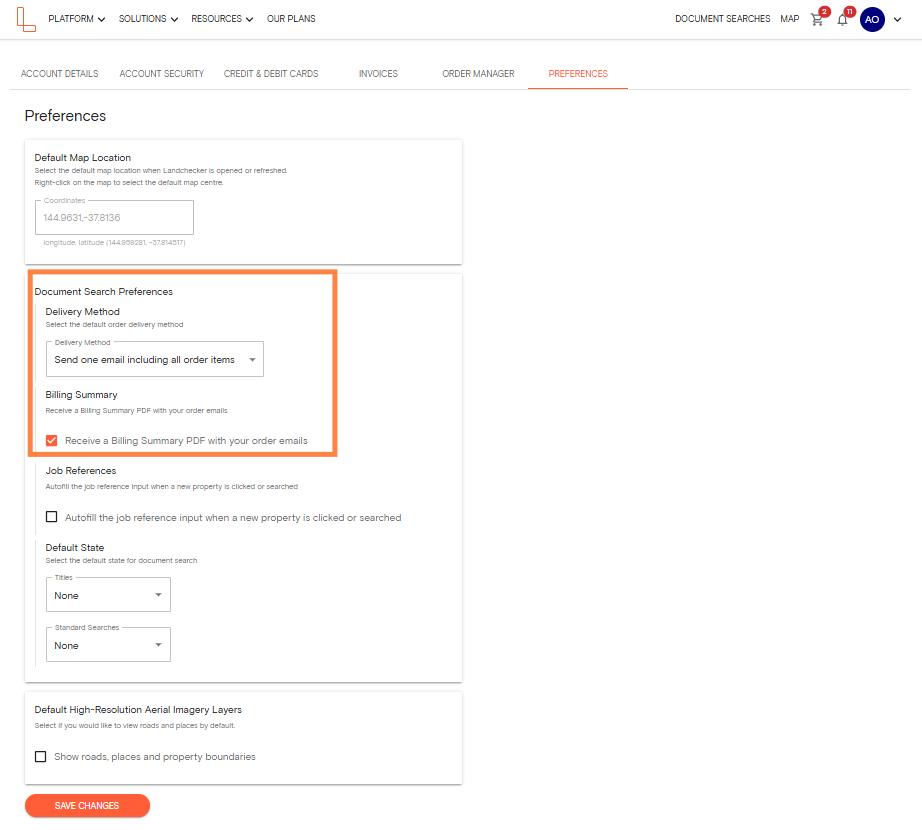
Step 2: Open the Preferences Tab
In My Account, select the Preferences tab. This is where you can manage your notification and billing settings.
Step 3: Enable the Billing Summary Option
Tick the checkbox next to Receive a Billing Summary PDF with your order emails, then save your preferences.
Step 4: Place Your Order
Once the setting is enabled, place your order as usual. When your documents are delivered, a Billing Summary PDF will be automatically sent to your delivery email.
Please note: This setting applies to your individual account only and does not affect other users in your organisation. You only need to enable it once, and all future order delivery emails will include a Billing Summary PDF until you untick the option.
Export a Billing Summary from Order Manager
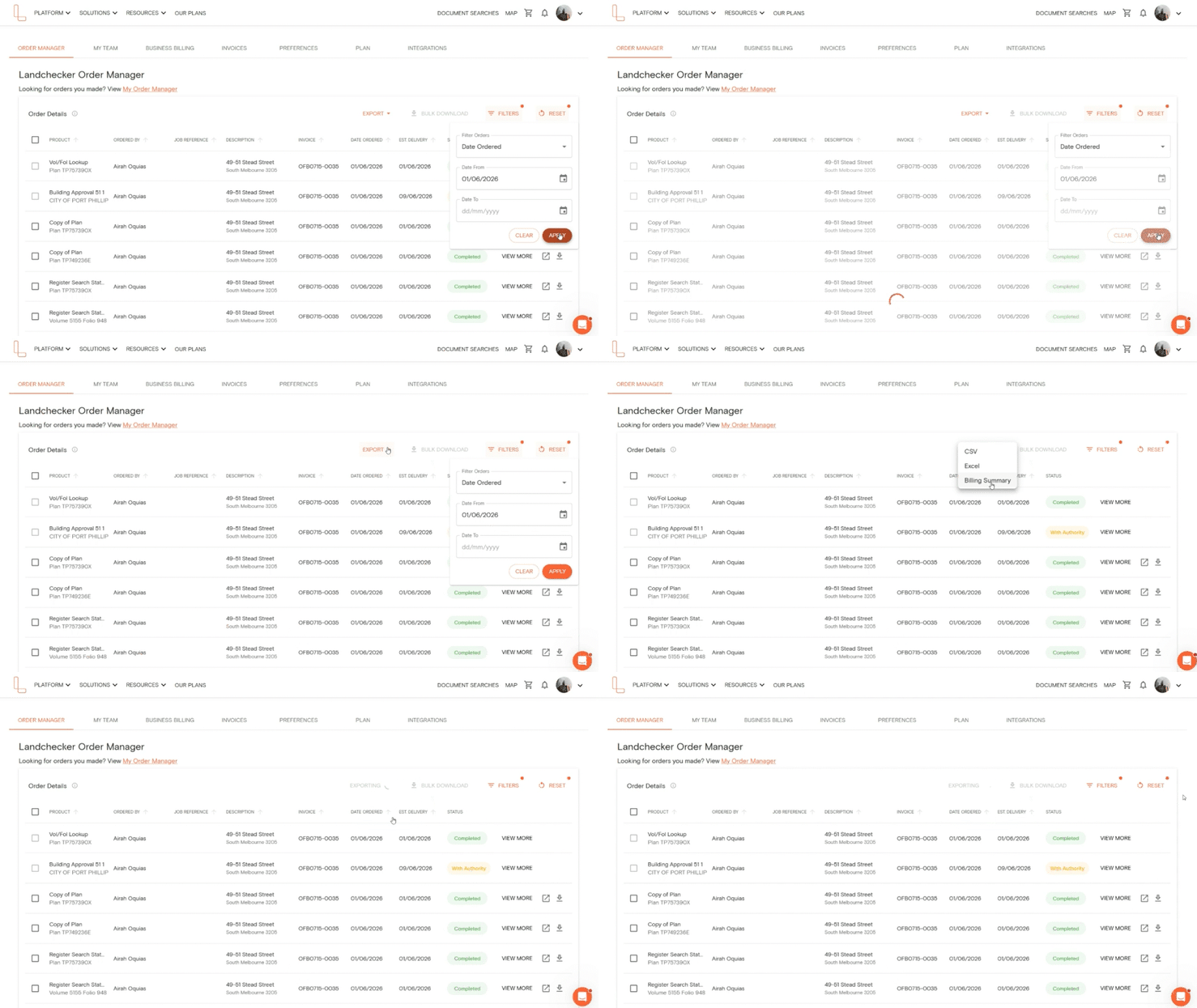
You can also download a billing summary directly from your Order Manager at any time.
Go to your Business Account profile, and Order Manager appears as the default tab.
Select the orders you want to include in your Billing Summary. If you'd like to export all orders, you can skip this step.
Click Export, then select Billing Summary.
A PDF file will be downloaded to your device.