
Product Help
How to Filter Properties in a Project
Filtering properties within a Project allows you to manage and refine the displayed properties.
By applying filters, you can selectively choose which properties are visible and which are hidden, providing a more focused and customised view.
You can quickly narrow down the list of properties using the Filter options in the top right corner of the Properties section in a Project.
Two Ways to Filter Properties in a Project
You can filter properties in your project in two ways: directly on the map or through the project dashboard.
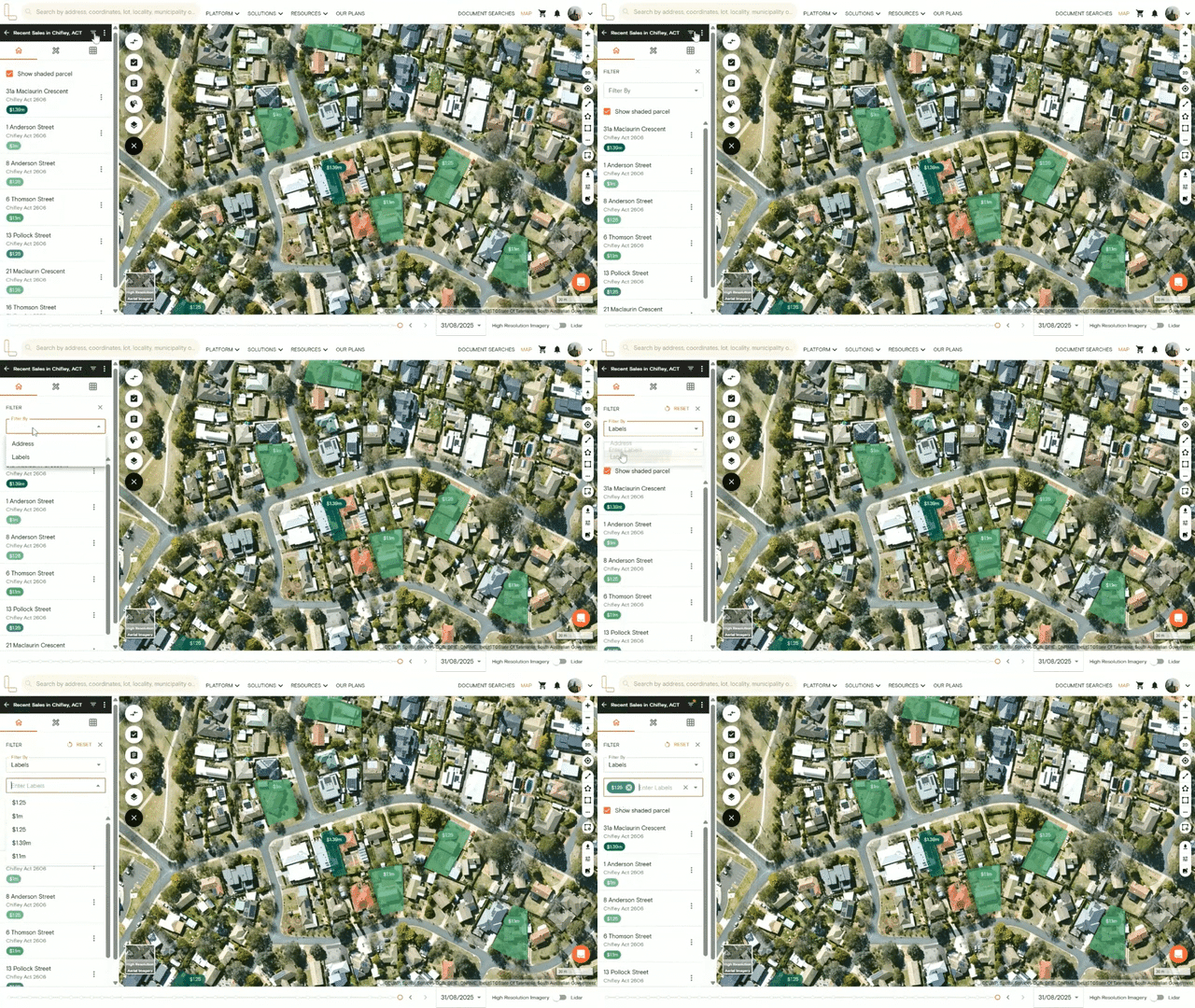
Filter on the Map
Click the Projects icon on the left-hand side menu
Select the specific project you want to filter
Click the filter icon in the top right corner
Choose whether to filter by address or label
If filtering by label, a dropdown menu will appear showing all available labels. Select one or multiple labels to apply your filter
Filter in the Project Dashboard
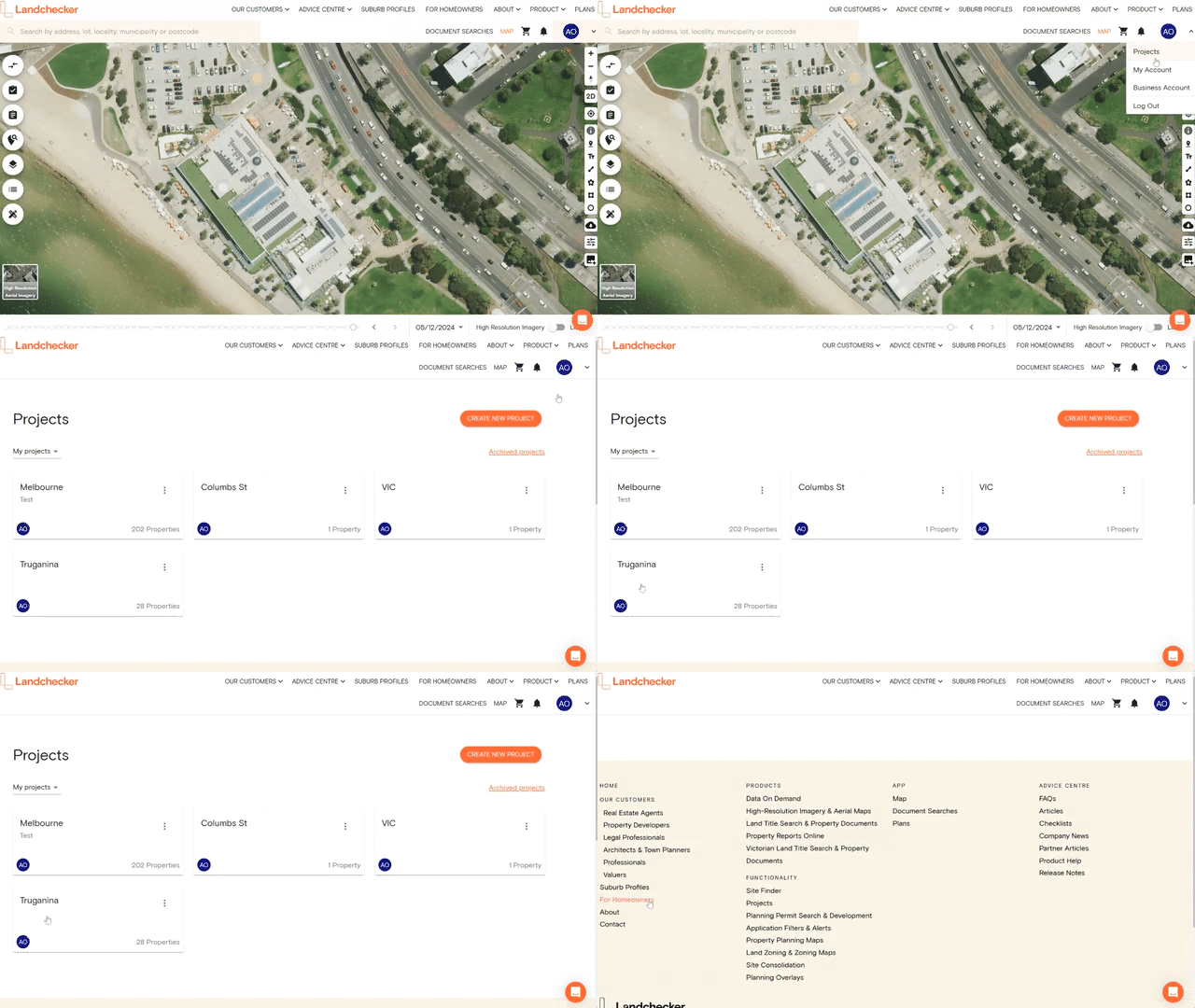
1. Access your Projects by clicking on your profile in the navigation bar and selecting Projects in the drop-down options. Then click on the project name.
2. Click the Filters button and select what column you would like to filter by. For the purposes of this article, we will select Labels.
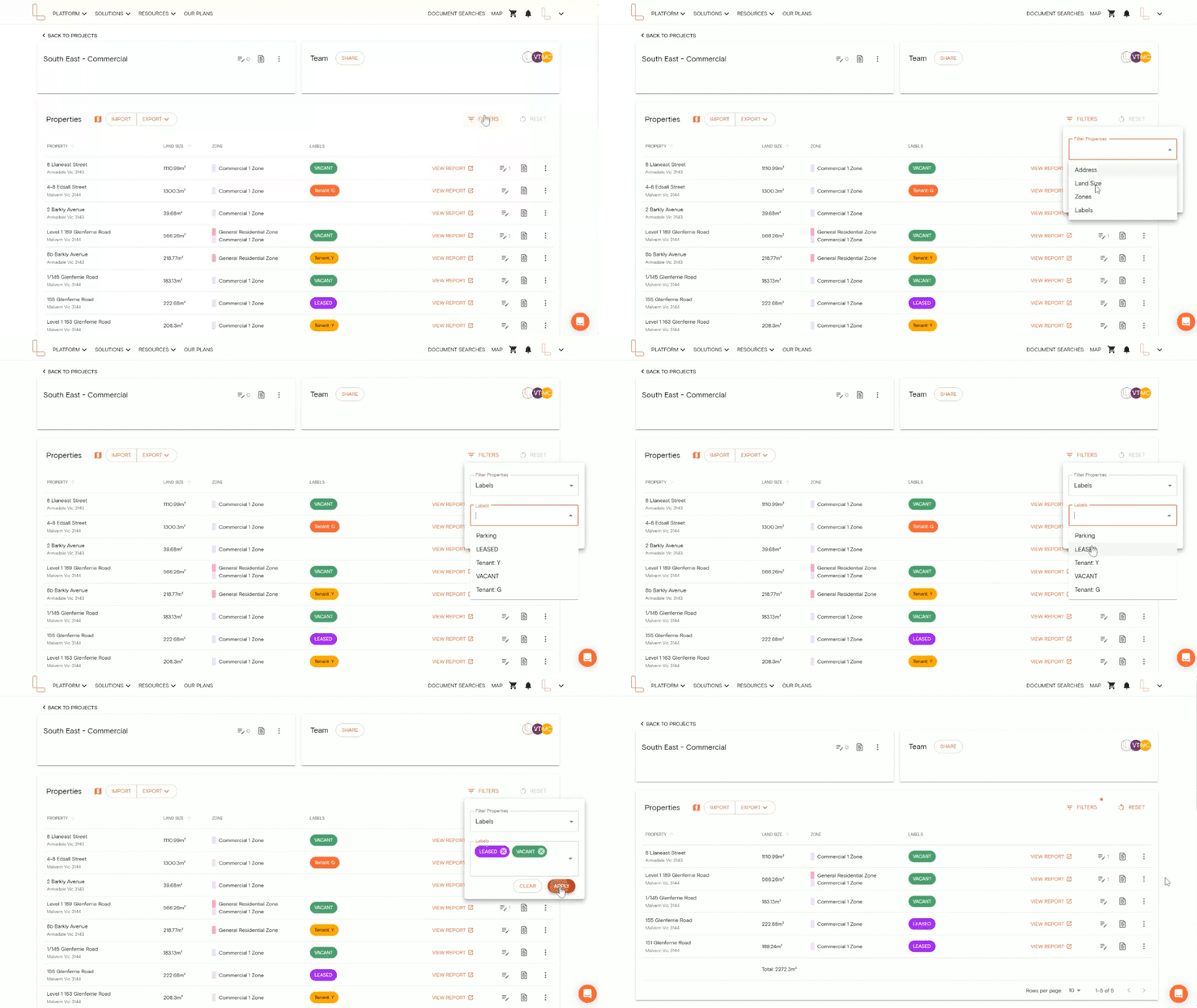
Note: When using the Address, Land Size or Zone filters, Contains is automatically selected. This lets you search any description that contains the address, land size or zone you choose to search by.
Then add the address, land size or zone in the keyword section to return all results relating to your search.
4. Select Reset if you want to clear all filters and column sorts.
4 Options to Filter Properties in a Project via the Project Dashboard
You can filter properties by the following columns:
1. Address – Filter by property address
2. Land Size – Filter by land size measurements
3. Zones – Filter by planning zone type
4. Labels – Filter by custom labels you've applied to properties
When filtering properties, you can choose from several filter options to refine your search:
If filtering by address and zone, you have these filter options available:
Contains – Search by criteria that you have added to the keywords field
Equals – Search by criteria that exactly match what you have added to the keywords field
Is empty – Search by what fields are empty, for example, what items do not have a land size or zone
When filtering by Land Size, you have more filter options available. These include:
Equal - Search by criteria that exactly match what you have added to the keywords field
Not equal – Search for items that do not match the keyword or phrase you have entered. It will return any results where the keyword is not present or does not exactly match
Greater than – Search for items where the value in a particular field is greater than the number you have entered
Greater than or equal to – Similar to "greater than," but it also includes results where the value is equal to the number you have entered
Less than – Search for items where the value in a particular field is less than the number you have entered
Less than or equal to – Similar to "less than," but it also includes results where the value is equal to the number you have entered