Product Help
How to sign in using Google
Log in to your Landchecker account using Google single sign on (SSO) for a faster, easier and more secure sign-in process.
If you’re a new customer, you can create accounts instantly, bypassing sign-up forms. Existing customers can connect their Google account for a streamlined, secure login process.
If you have an Enterprise plan, this serves as another option to onboard your team aside from Security Assertion Markup Language (SAML) SSO with Microsoft.
Set up Google SSO
1. Click the Continue with Google button on the sign up page.
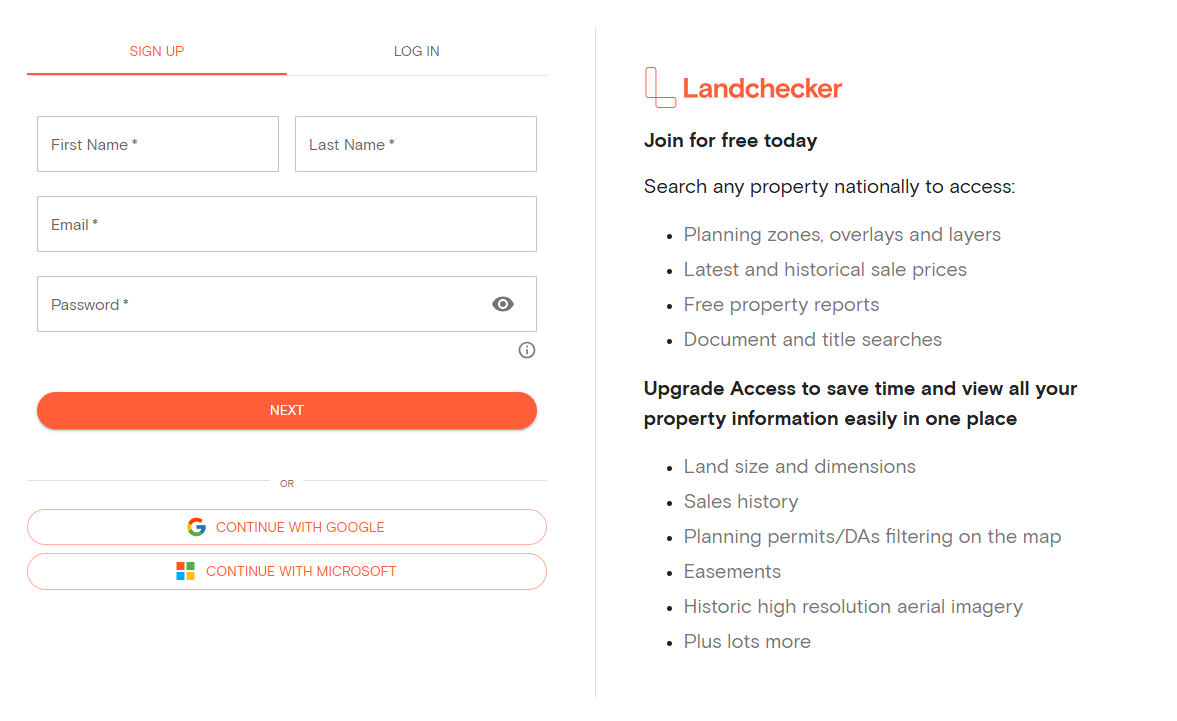
2. Choose a Google account to use and click Continue.
If this is your first time signing in, you’ll need to share your email address, name and profile picture. To make changes at any time, go to your Google Account.
3. If your Google email is already registered with Landchecker, you’ll see this message:
Hi [Your Name], an account for [your email] already exists. Please enter the OTP sent to your email to link your SSO provider to this account.
Check your inbox for a one-time password (OTP) from Landchecker. Then enter the OTP when prompted.
If you have your two-factor authentication enabled, open your authenticator app to get your six-digit verification code.
Your Google account is now linked, and you can use it for future logins.
How to Disconnect Your Google Account
Here are the steps if you want to unlink your Google account from Landchecker:
1. Log in to your Landchecker account.
2. Click your profile photo in the top-right corner and go to My Account and got to the Account Security tab.
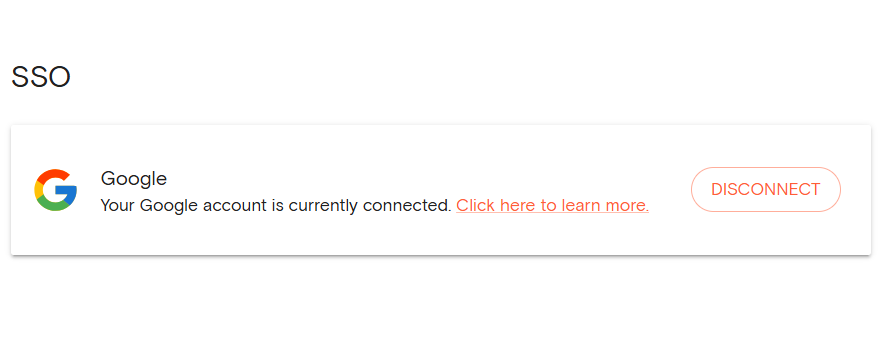
3. Under the SSO section, you'll see a message saying “Your Google account is currently connected.”
Click Disconnect and confirm that you will now log in using your password.