
Product Help
How to search planning layers and save favourites
Search and filter planning layers by name or zone code, and save your most-used layers as favourites for faster access on the Landchecker map. Searching by name or zone code is also a quick way to confirm whether a particular layer is available on Landchecker.
What plans have access to this feature?
All plans, including the free plan, can search and browse planning layers. Note that some layers are only accessible on paid plans.
Adding layers to favourites and adjusting the opacity level of planning layers are available on Advanced and Enterprise plans only. To upgrade, visit our plans page.
How do I search for a planning layer?
Open the Landchecker map at app.landchecker.com.au.
Click Planning Layers in the left-hand panel to expand the menu. The panel will expand to show all available planning layers.
Click inside the Search layers field at the top of the Planning Layers panel.
Type the layer name (for example, "Heritage Overlay") or a zone code (for example, "GRZ").
The list will filter in real time to show only layers that match your search term.
If no layers appear in your results, try the following:
Make sure your search is spelled correctly.
Try searching by description, code, or state.
Pan around the map as layers update based on the current view.
If a layer does not appear in the results, it may not be available on the platform. You can let our team know via the live in-app chat. We welcome your feedback on the data you need.
How do I save a planning layer as a favourite?
Saving favourites is available on Advanced and Enterprise plans only. To upgrade, visit our plans page.
To save a planning layer as a favourite:
Search for or locate the layer you want to save.
Hover over the layer name — a star icon will appear beside it.
Click the star to add the layer to your Favourites section.
You can save as many layers as you like. To expand the Favourites section, drag the resize handle in the lower-right corner of the panel.
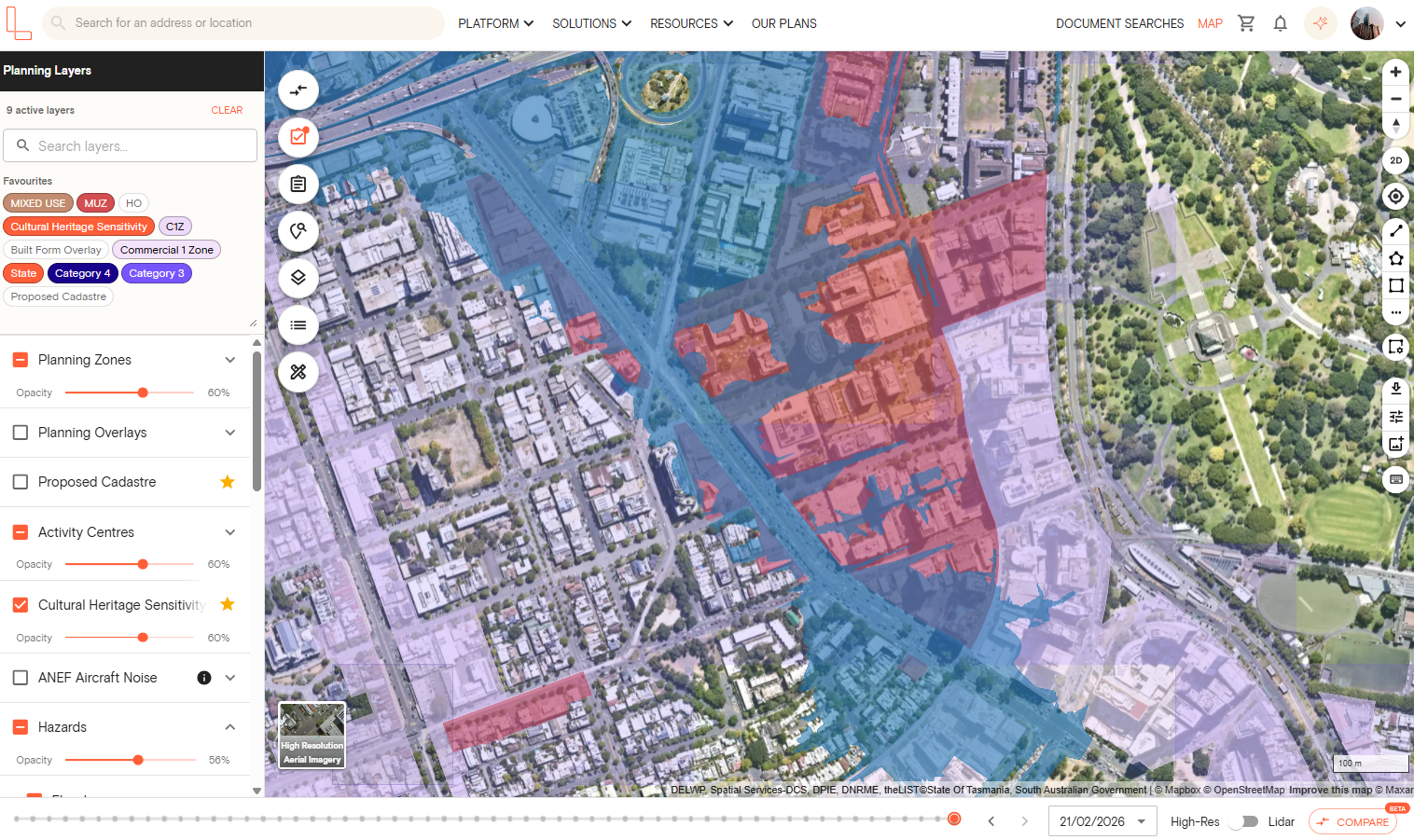
How do I activate a layer from my favourites?
To activate a favourited layer and display it on the map:
Locate the layer in your Favourites section.
Click the chip to activate it. The layer overlay will appear on the map.
Repeat for any other layers you want to display. You can activate multiple layers at the same time.
To hide a layer, click the chip again to deactivate it. The overlay will be removed from the map.
How do I remove a layer from my favourites?
To remove a layer from your Favourites section:
Find the layer in the Planning Layers list.
Hover over the layer name — the star icon will appear beside it.
Click the star to deselect it. The layer will be removed from your Favourites section.
Note: This does not delete the layer from Landchecker. It only removes it from your saved favourites.