Points of Interest
Every council’s permit and DA data on one map. See what’s been approved, refused or is under assessment near any site — filter by keyword (e.g. sub division, multi level), date or outcome — and get alerted the moment something new is lodged in your area.
"Landchecker allows us to stay on the front foot by accessing the most up to date data available."
David J Hall, Head of Commercial Real Estate Cushman & Wakefield
See what’s around a site without leaving it
A property’s title, zoning and overlays tell you what you can do with the land. Points of Interest shows you what’s around it: the nearest train station, the primary school around the corner and the supermarkets already trading nearby.
So more of your due diligence happens in one place. Check amenities alongside the boundaries, zoning and planning data for any address, and you’ll know more about a site before you inspect it, value it or put it in front of a client.
- Search an address – find the property or area using the search bar at the top of the map.
- Open the panel – click the Points of Interest icon in the left-hand toolbar.
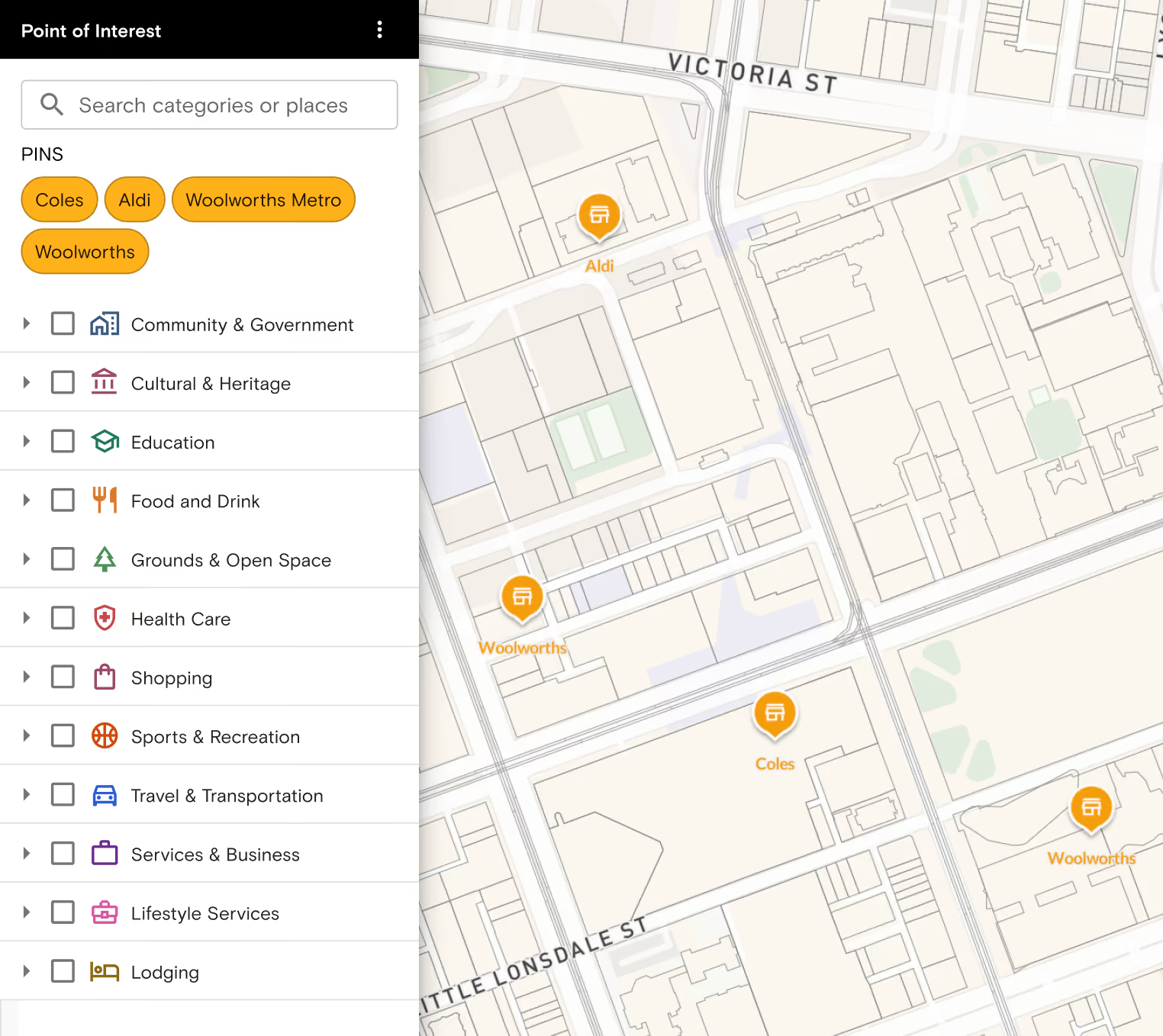
- Tick a category – choose a category or sub-category, or search for a type of place by name, and the markers appear on the map.
13 categories, down to the exact type of place
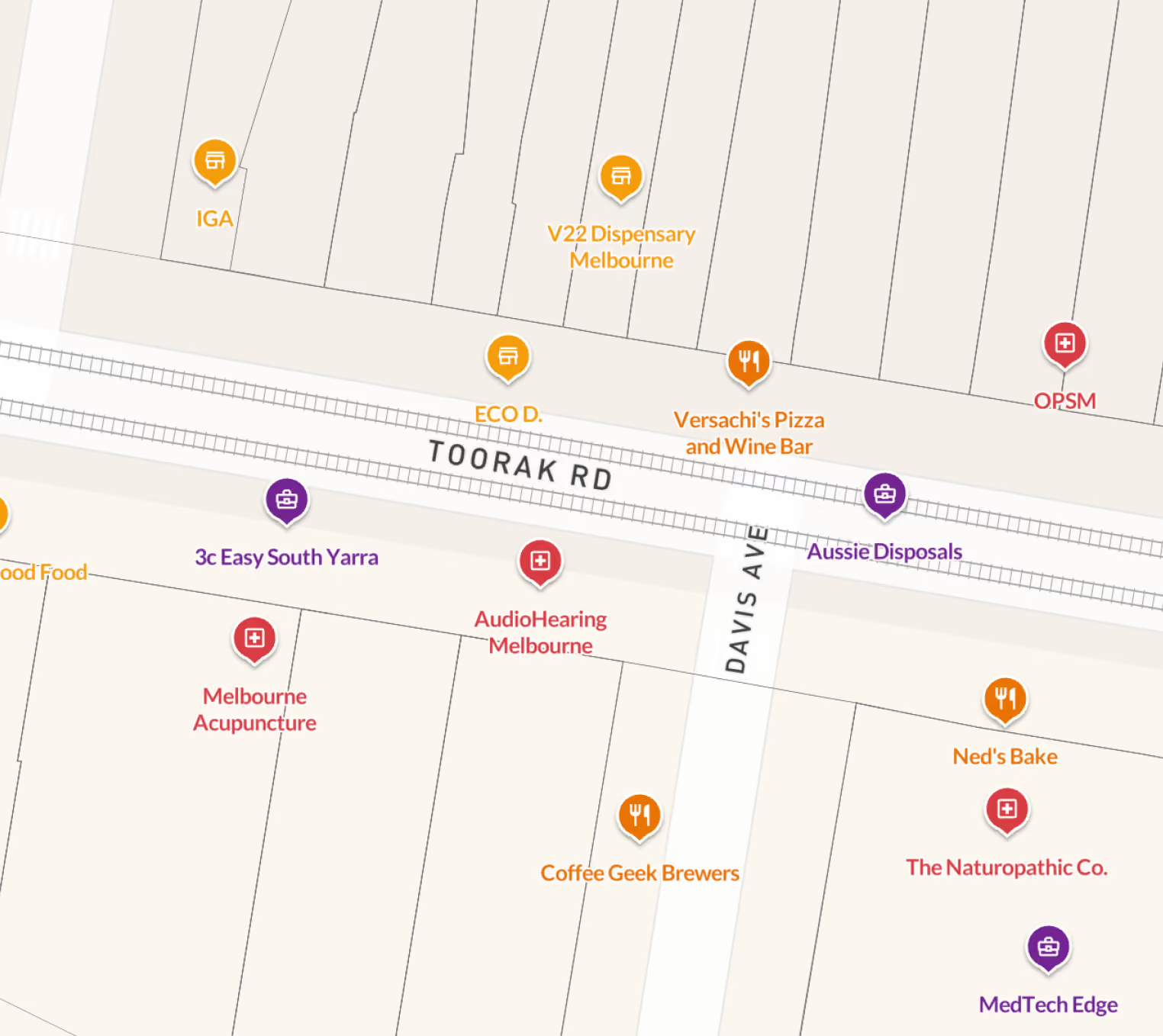
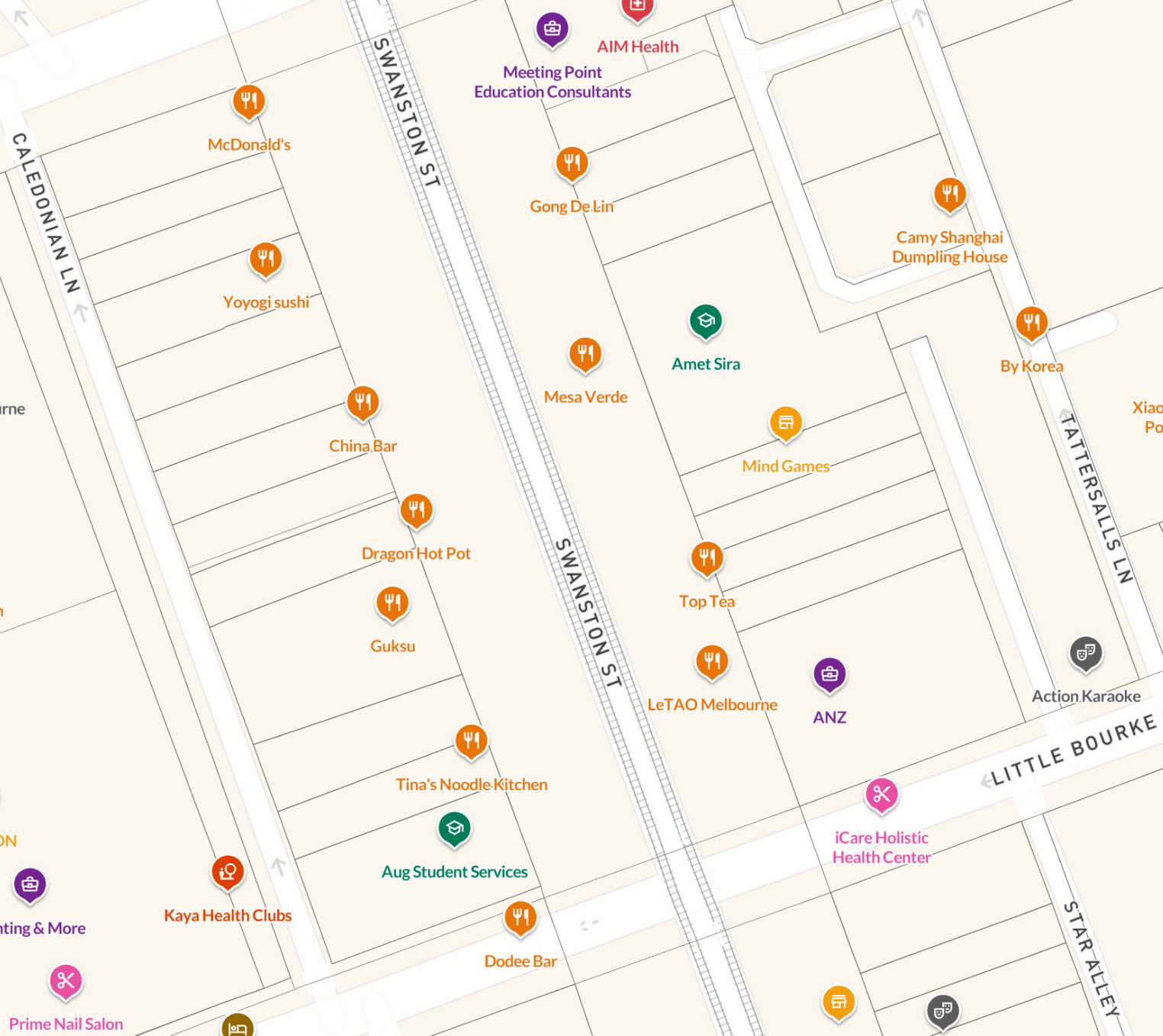
Each category has its own icon and colour, so you can tell a school from a hospital at a glance:
- Sub-categories – open any category to show one type of place on its own. Health Care alone splits into five, from Hospital to Emergency Or Urgent Care Facility, so you can answer a specific question without crowding the map.
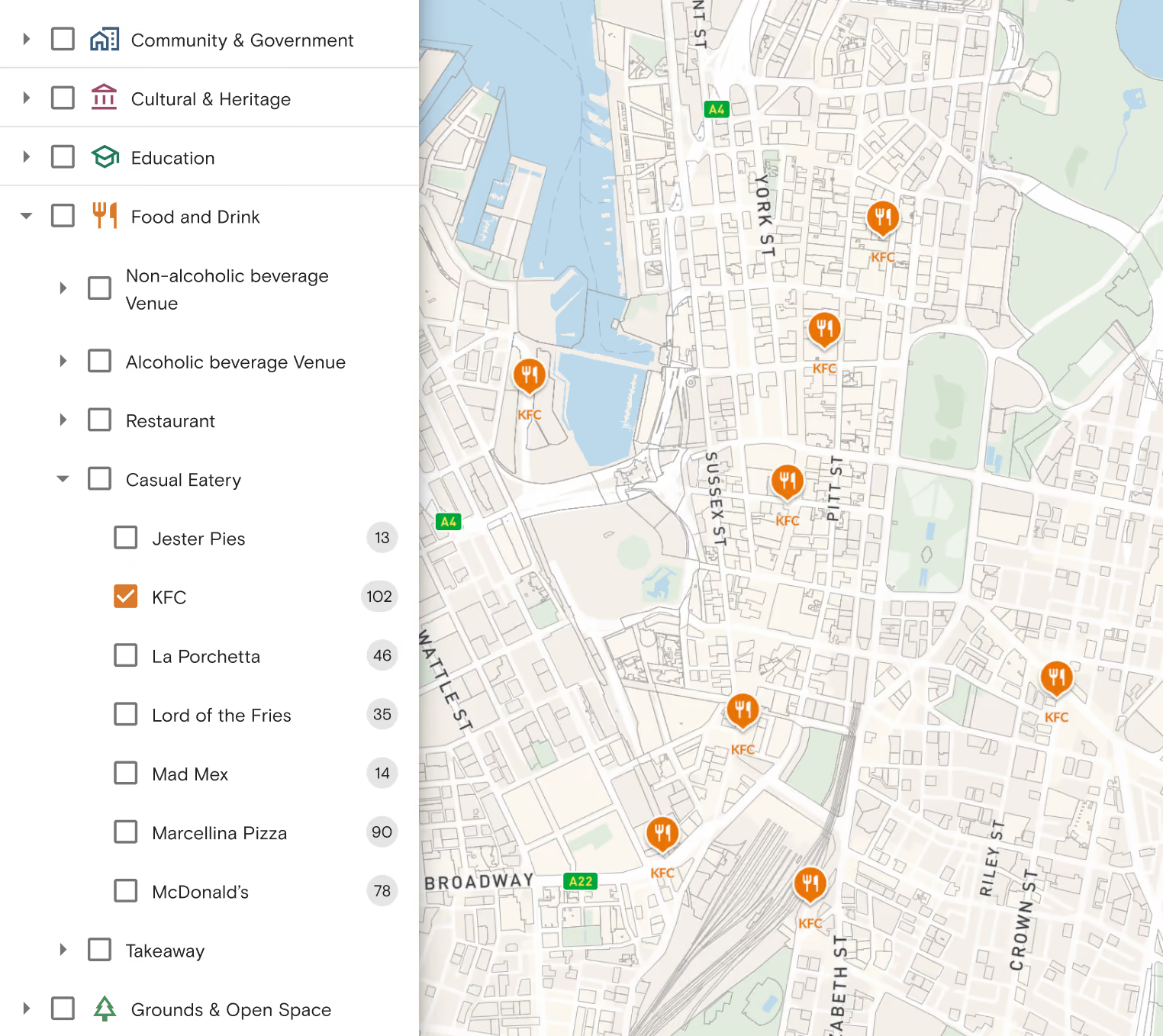
- Category and place search – type “McDonald’s” or “KFC” into the panel’s search bar, so you can find a specific business by name without scrolling the list.
- Every location of a business – tick a specific business and click the location icon to show all of its locations on the map at once. The count beside each name tells you how many there are.
- Pins – pin the places you use or search for most and they sit at the top of the panel, so you can turn them on in one click next time.
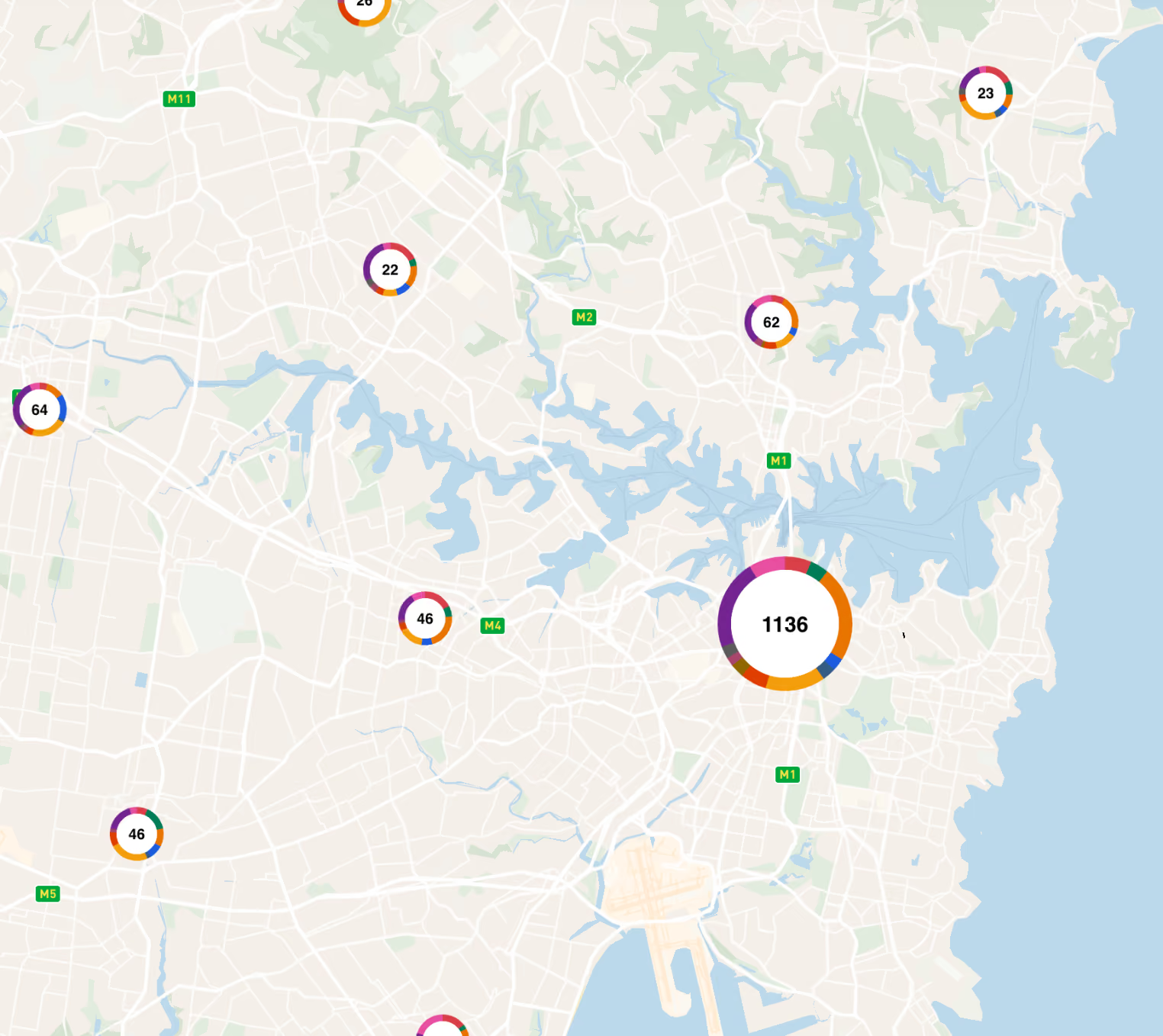
- Clusters – tick Cluster points of interest in the Points of Interest menu to group nearby markers into numbered circles, with a coloured ring showing the mix of categories inside, so you can read amenity density across a suburb before zooming in on a street.
- Custom category order – drag the categories you use most to the top of the panel, so your usual checks are always first in the list. Available on the Standard, Advanced and Enterprise plans.
What’s on the map
Points of Interest covers 502,992 places across all states. It’s updated quarterly, so new schools, stations and shops appear on the map without you having to look them up elsewhere.
- 502,992 places on the map
- 13 categories, each with its own sub-categories
- Coverage across all states
- Quarterly data updates
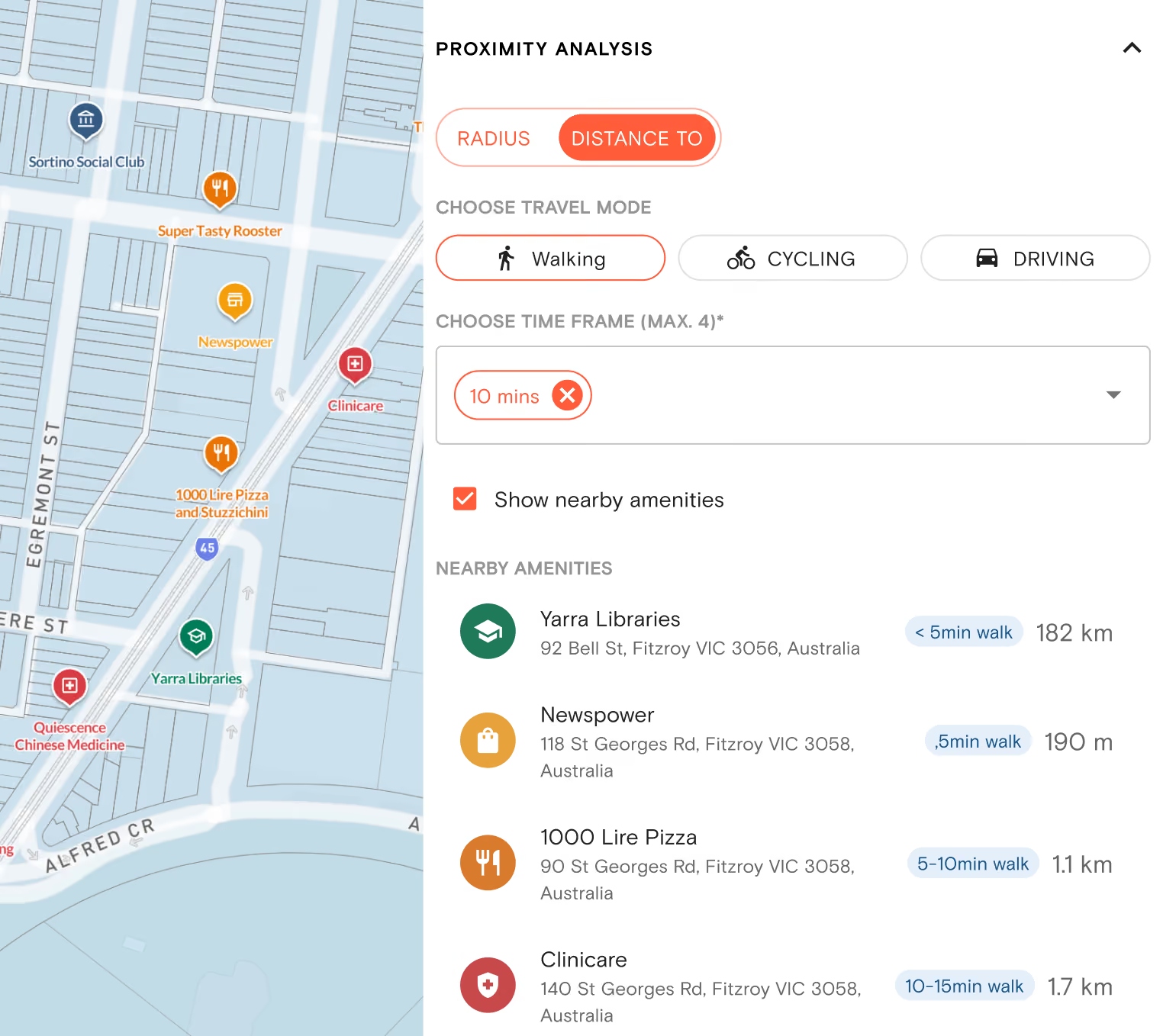
Go from what’s nearby to how far away
To list the places around a specific property with the distance to each one, use Proximity Analysis in the right-hand information panel. Set a fixed radius from 50 m to 1 km, or a walking, cycling or driving time, and Proximity Analysis lists every place of interest inside it, narrowed to the categories you need.
Points of Interest marks where a place is, not the area it serves. To check which school zone a property falls in, turn on School Catchments.
Proximity Analysis is available on the Advanced and Enterprise plans. Read the help article

.png)